
Introduction
In wireless point-to-point (PTP) or point-to-multipoint (PTMP) deployments using TNA devices, securing administrative access across distinct network boundaries is critical. This configuration example demonstrates how to deploy a TNA devices combined with FreeRADIUS to centralize user authentication. By utilizing RADIUS authentication instead of localized credentials, the network boundary establishes a robust security framework that effectively mitigates unauthorized access to the remote site's isolated LAN. This deployment delivers significant operational benefits, including centralized security auditing via unified login logs, instantaneous access revocation, and simplified credential management across the wireless backbone. Ultimately, this integration provides a step-by-step walkthrough to successfully secure administrative WebUI access while maintaining a scalable and easily auditable network infrastructure.
Topology
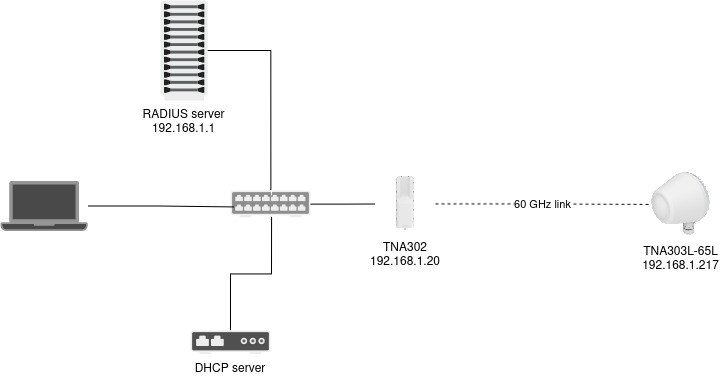
Configuration
Radius Server
Install a FreeRADIUS server:
sudo apt update && sudo apt upgrade -y
sudo apt install freeradius freeradius-utils -y
Create a new user by adding it at the end of the user configuration file:
sudo nano /etc/freeradius/3.0/users
testing Cleartext-Password := "Testing123"
Since the test is being performed with two devices, two clients need to be created at the end of the configuration file:
client TNA302 {
    ipaddr      = 192.168.1.20
    secret      = Securekey123
}

client TNA303L-65L {
    ipaddr      = 192.168.1.217
    secret      = Securekey321
}
After configuring the RADIUS server, it needs to be restarted:
sudo systemctl restart freeradius
TNA device configuration
Go to Authentication, and in the System Authentication section, set the Web UI login authentication method to RADIUS authentication.
Based on the configured RADIUS server, set up RADIUS authentication accordingly:
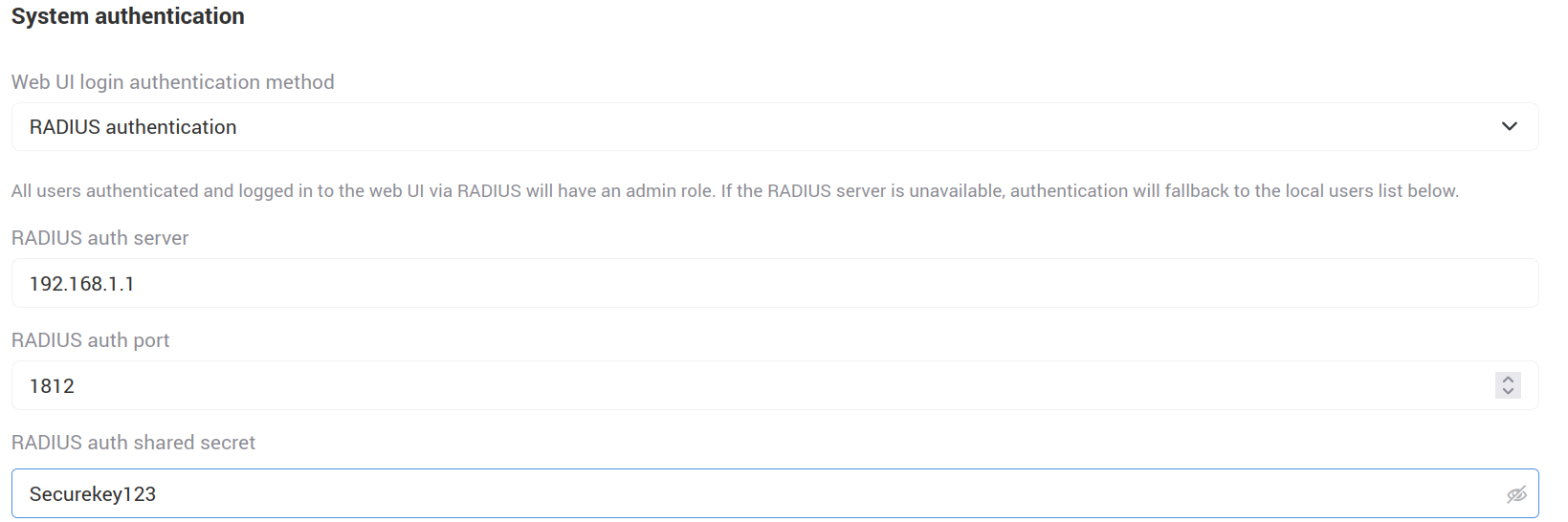
Save the changes and configure the second TNA device. On the second device, the RADIUS authentication shared secret must be different, as configured on the RADIUS server side.
Testing
Try logging into the TNA device Web UI using the credentials created in the RADIUS server users file. If the login is successful, RADIUS authentication is working correctly.
After successfully logging into the Web UI, the tcpdump output on the RADIUS server looks as follows:
10:03:00.088903 IP 192.168.1.20.60641 > 192.168.1.1.radius: RADIUS, Access-Request (1), id: 0xce length: 47
10:03:00.089937 IP 192.168.1.1.radius > 192.168.1.20.60641: RADIUS, Access-Accept (2), id: 0xce length: 38
If authentication fails due to incorrectly entered login credentials, the tcpdump output on the RADIUS server looks as follows:
10:02:46.306996 IP 192.168.1.20.51001 > 192.168.1.1.radius: RADIUS, Access-Request (1), id: 0x5f length: 44
10:02:47.308864 IP 192.168.1.1.radius > 192.168.1.20.51001: RADIUS, Access-Reject (3), id: 0x5f length: 38